Guide · 7 November 2026
How to find and delete duplicate photos on iPhone
Duplicate photos sneak in from saved images, chat apps and imports. Your iPhone has a built-in tool that handles most true copies. Here is how to use it, what it leaves behind, and how to deal with the rest.
Where duplicates come from
Most people never take the same photo twice on purpose. Copies show up anyway:
- You save the same image from Messages or another chat app more than once.
- You import photos from a camera, a computer or an old phone, and some of them were already there.
- You download the same picture from an email or a website twice.
- You edit a photo in another app and save the result as a new image.
Then there is a second kind that feels like duplicates but isn't: five, ten, fifteen shots of the same moment, taken a few seconds apart, hoping one of them comes out right. We'll get to those below.
Use the built-in Duplicates tool in Photos
Since iOS 16, the Photos app looks for duplicates on its own and collects them in one place.
- Open the Photos app.
- Go to the collections. On iOS 26, switch to the Collections tab. On iOS 18, scroll down below the photo grid.
- Find Utilities and tap Duplicates.
- Look through the sets. Each one shows the copies side by side, with their file details.
- Tap Merge next to a set to merge just that one. To do several at once, tap Select, pick the sets (or select all), and tap Merge at the bottom.
- Confirm when Photos asks.
Merging is gentle. Photos keeps one version, the highest quality one, combines relevant details from the copies into it, and moves the other copies to Recently Deleted. If you change your mind, you have 30 days to recover them.
Don't see Duplicates? It only shows up when Photos has found some. On a big library, or right after you set up a new iPhone or turn on iCloud Photos, your iPhone may need time to finish looking through everything. This usually happens in the background, often while the phone is locked and charging.
What the built-in tool doesn't catch
Duplicates is careful on purpose. It looks for copies of the same image, including copies that differ only in size, format or details like the date. It does not try to judge which of two different photos is better.
That means it leaves out:
- Ten shots of the same sunset, each slightly different.
- A group photo taken four times because someone blinked.
- Photos of the same dish from a slightly different angle.
Each of those is a separate photo, so none of them count as a duplicate. In many libraries, these lookalike sets take more space than true copies do.
Real bursts are a bit different. If you held down the shutter in burst mode, Photos stores the burst as one item and lists it under Media Types, Bursts. Open one, tap Select, choose the frames you like, and Photos asks whether to keep everything or only your picks.
Clean up lookalike shots by hand
For lookalikes that aren't bursts, you can review them yourself. It takes a while, but it works.
- Open your library and find a moment where you took several shots in a row.
- Open the photos one by one and swipe between them to compare.
- Tap the heart on the one you want to keep. Doing this first makes it hard to delete the good one by accident.
- Go back to the grid, tap Select, choose the others in the set, and tap the trash button.
Pinching the grid to make thumbnails larger helps you spot sequences. Still, doing this across a few years of photos is slow, and it's easy to give up halfway.
Find copies and lookalikes together with Sorta
Sorta, a free iPhone app we make, has a Doubles tab built for this second kind of mess. It finds exact copies and also lookalikes, like burst-style shots taken seconds apart, and groups them into sets.
For each set, Sorta picks the best one to keep, the sharpest and best-looking shot, and lines up the rest for deletion. Photos you have marked as favorites are always kept. You look over the sets, change anything you disagree with, and delete the rest in one tap.
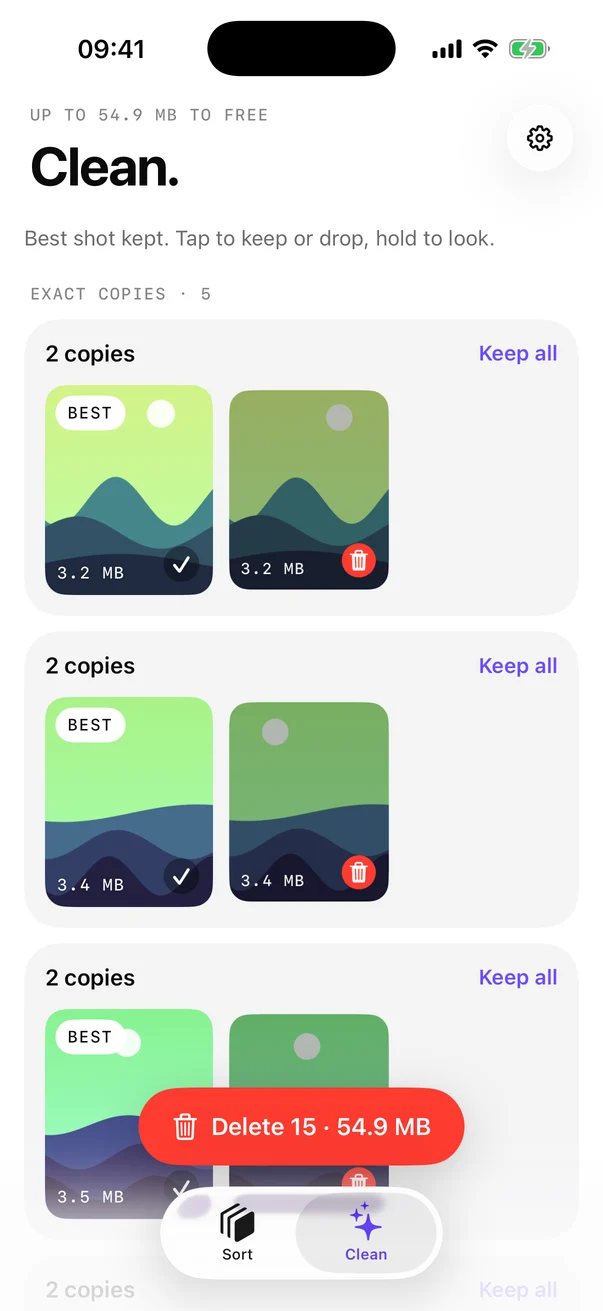
Deleting always goes through the standard iOS confirmation, and everything goes to Recently Deleted for 30 days. All of the looking happens on your iPhone with on-device image recognition. Nothing is uploaded and there is no account.
Sorta doesn't replace the built-in tool. Apple's Merge is a good choice for true copies because it combines their details into one photo. Sorta is useful for the lookalikes Merge was never meant to touch.
Before you delete: a quick check
- iCloud Photos syncs deletions. If it's on, deleting a photo on your iPhone deletes it on your other devices too.
- Shared Library counts. If you use an iCloud Shared Photo Library, think about whether others still want a photo before removing it.
- Space comes back later. Deleted photos sit in Recently Deleted for 30 days. Empty it in Utilities if you need the space now.
If storage is the real reason you are cleaning up, our guide on freeing up iPhone storage from photos covers the other places space hides, like large videos.
FAQ
Does iPhone have a built-in duplicate photo finder?
Yes. Since iOS 16, Photos has a Duplicates collection under Utilities. It finds copies of the same photo or video and lets you merge them.
What happens when I merge duplicates in Photos?
Photos keeps the highest quality version, combines relevant details from the copies into it, and moves the other copies to Recently Deleted, where you can recover them for 30 days.
Why doesn't Duplicates show my similar photos?
It looks for copies of the same image. Several shots of the same scene taken seconds apart are different photos, so it leaves them alone. Review those yourself or use an app that finds lookalikes.
Does deleting duplicates free up storage right away?
Not right away. Deleted and merged copies stay in Recently Deleted for 30 days and still take space until you empty it.