Guide · 7 November 2026
How to organize screenshots on iPhone
Most screenshots are meant to last a day or two. A ticket, a code, an address. Then they stay for years. Here is how to get them in order with what is already on your iPhone, and a quicker way if you have hundreds of them.
Why screenshots pile up
Taking a screenshot takes half a second. Boarding passes, receipts, a recipe, a map pin, a chat you wanted to show a friend. They all go into the same library as photos of your family and your holidays.
One screenshot is small. A few thousand of them make the camera roll hard to scroll and make the one you actually need hard to find. The good news is that iPhone already knows which images are screenshots, so you are not starting from zero.
Step 1: See all your screenshots in one place
The Photos app groups screenshots for you automatically. You just have to know where to look.
- Open the Photos app.
- Go to the collections. On iOS 26, switch to the Collections tab. On iOS 18, scroll down below the photo grid.
- Find Media Types and tap Screenshots.
Now you are looking at screenshots only, without your regular photos in between. If you come here often, you can pin this collection so it sits near the top of the list. Photos lets you customize and reorder collections.
Step 2: Delete what you don't need
The fastest way to organize screenshots is to keep fewer of them. Two habits help.
Delete one-off screenshots right away. When you take a screenshot, a preview appears. Open it, and when you are done you can choose to delete it instead of saving it to Photos. This works well for things you only need once, like a sign-in code.
Clear out old ones in bulk.
- In the Screenshots collection, tap Select.
- Drag your finger across a row of thumbnails to select many at once, then keep dragging up or down to select whole blocks.
- Tap the trash button and confirm.
Deleted items go to Recently Deleted and stay there for 30 days, so a mistake is easy to undo.
Step 3: Put the keepers into albums
For screenshots you want to keep, albums give them a home. A handful of simple albums is enough for most people: Receipts, Tickets, Recipes, Places.
- Tap Select and choose the screenshots you want to group.
- Tap the Share button or the More button and choose Add to Album.
- Pick an existing album, or create a new one.
An album does not move or copy the image. The screenshot stays in your library and also shows up in the album, and one screenshot can live in several albums. Removing it from an album is not the same as deleting it from your library, and Photos asks you which one you mean.
Step 4: Search by the text inside a screenshot
Photos can read the text in your images. That means you can search for a word that appears in a screenshot, not just a date or a place.
- Open Photos and tap Search.
- Type a word you remember, like an airline, a shop name or "invoice".
- Look for the results that matched text in your images.
This happens on your iPhone. After a big import or a new phone, it can take a while before every image is searchable. Recent versions of Photos also show smart groups under Utilities, such as receipts, documents or QR codes, depending on what is in your library.
Step 5: Copy the text out with Live Text
A lot of screenshots exist only to hold one piece of text: a booking reference, a tracking number, an address. Live Text lets you take that text out.
- Open the screenshot in Photos.
- Tap the Live Text button in the corner, or touch and hold the text you want.
- Select the text and tap Copy, then paste it into Notes, Calendar or wherever it belongs.
Once the text is somewhere useful, the screenshot itself can usually go.
Where doing it by hand falls short
These tools work, but they ask a lot of you. Albums only help if you file every screenshot yourself. Search only works when you remember the right word. The Screenshots collection is still one long list. If you have two thousand screenshots, sorting them by hand is a long evening.
A faster way: sort them all at once with Sorta
Sorta is a free iPhone app we made for exactly this. After you give it access to Photos, your library shows up as "the pile." Tap Sort the pile and every screenshot flies into a drawer: Travel & Tickets, Money & Receipts, Food & Recipes, Maps & Places, Chats, Shopping, Social, Reading, and Everything Else. Your regular photos get their own drawers, like People, Pets & Animals and Nature.
It reads screenshots with Apple's on-device text recognition, the same kind of reading Live Text does. On iPhones with Apple Intelligence, Apple's on-device model takes a second look at the screenshots the simple rules could not place. Nothing is uploaded. There is no account and no tracking.
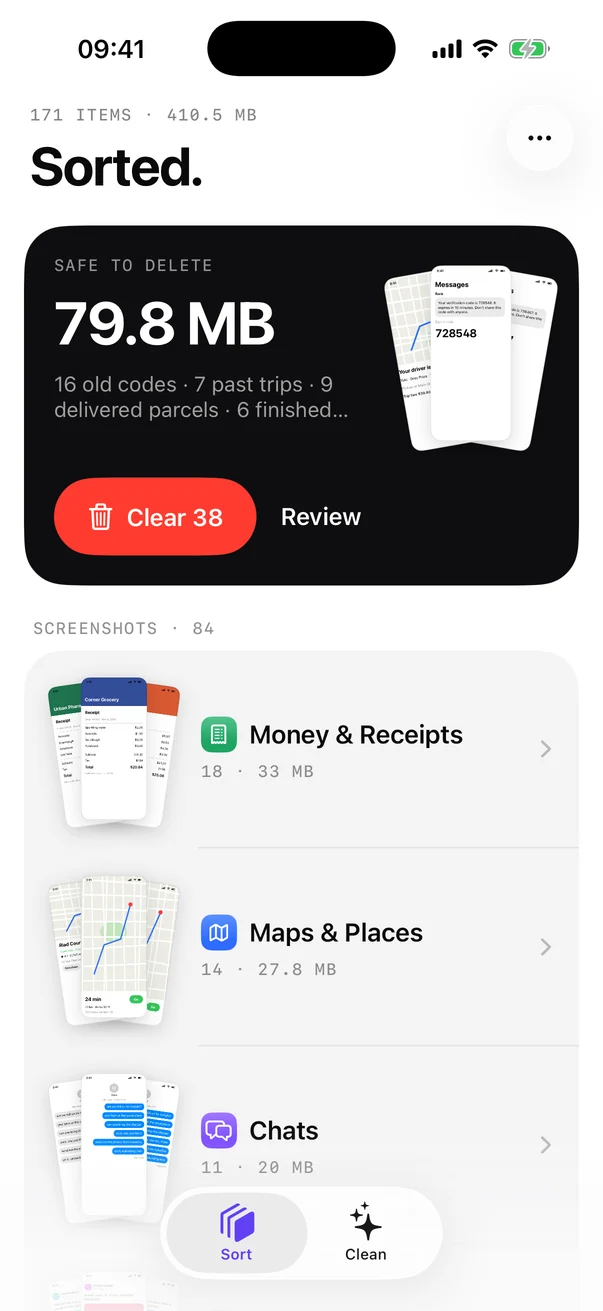
Sorta also shows a Safe to delete card. It collects screenshots that have done their job: old one-time sign-in codes, boarding passes and tickets for dates that have passed, delivered parcels and finished rides. You can review them or clear them in one tap. Deleting always goes through the normal iOS confirmation, and items wait in Recently Deleted for 30 days.
If you like the albums approach from Step 3, you can save any drawer as a Photos album, such as "Sorta · Receipts", so the same order shows up in the Photos app. You can also copy text from any screenshot and move items between drawers.
A routine that keeps it tidy
- Delete one-off screenshots right after you use them.
- Once a month, open the Screenshots collection and clear what is old.
- Copy important text out with Live Text, then let the image go.
- Keep the screenshots you really need in a few clear albums.
FAQ
Where are screenshots saved on iPhone?
In your main library in the Photos app, together with your photos. To see only screenshots, open Photos, go to the collections, find Media Types and tap Screenshots.
Can iPhone put screenshots in their own album automatically?
Photos has no setting that files new screenshots into an album you choose. They always land in the main library, and the Screenshots collection gathers them for you. You can add them to albums by hand, or use an app that sorts them for you.
If I delete a screenshot, is it gone from iCloud too?
If iCloud Photos is turned on, deleting a screenshot on one device removes it from all your devices. It moves to Recently Deleted first, where you can recover it for 30 days.
Does Sorta upload my screenshots?
No. Sorta reads screenshots with Apple's on-device text recognition and sorts photos with on-device image recognition. Nothing leaves your iPhone, and there is no account or server.